Pin the channels you switch to most and put a folder in exactly the order you want.
Pin to the top
Pinned channels sit above everything else in a folder, in the order you pinned them.
-
1Open a favourites folder, press and hold a channel and tap Pin to top.

-
2It moves to the top of the folder with a pin on it. Press and hold it again for Unpin.

Move a channel anywhere
Pin puts a channel at the top. Move puts it wherever you like.
-
1Press and hold a channel and tap Move (in a folder of two or more). Drag it by the handle, or use the arrows, then tap Done. Dropping it in among the pinned channels pins it too.

Take a channel out
-
1Press and hold it and tap Remove from Favorites.
Edit and repair
-
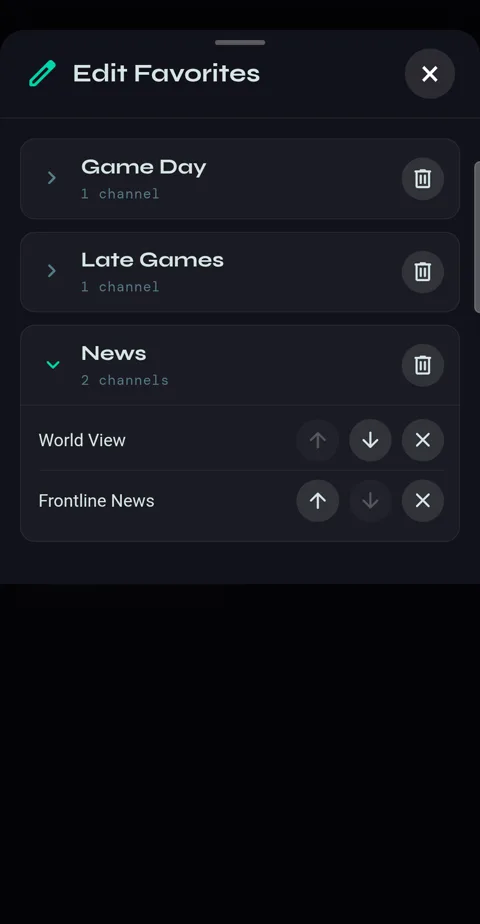
1On the Favorites page, Edit Favorites lists every folder: open one to see its channels, or delete it.
-
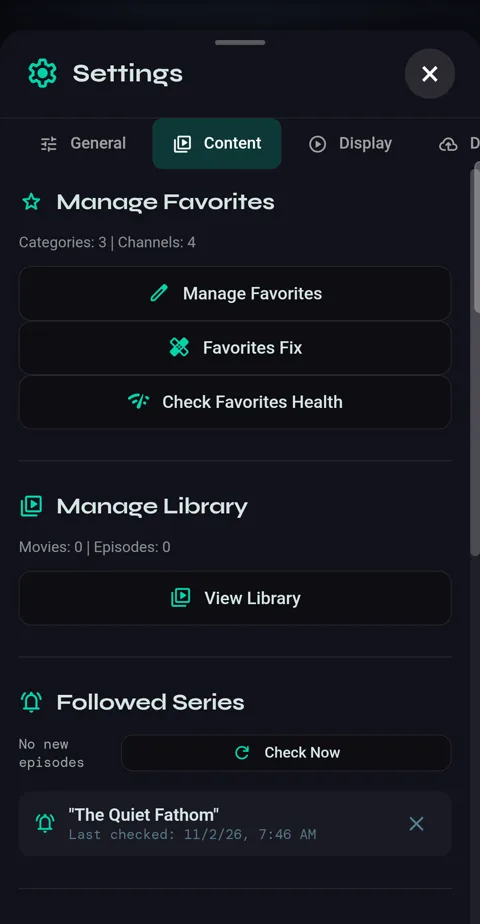
2Settings → Content: Favorites Fix repairs garbled channel names from your current lineup — nothing is deleted. Check Favorites Health checks every favourite now.
Across your devices
-
1With Cloud Sync connected, the order and pins you set on one device appear on the others. The most recent change to a folder wins.