Some movies and episodes arrive from your provider with no subtitles at all. Velo can find them through a free account you control.
Why some titles have no subtitles
Whether a movie has subtitles depends on the file your provider chose to carry, not on Velo.
-
1Some releases keep every subtitle track they were published with. Many are cut down to video and one audio track. If the CC menu offers nothing, the file genuinely has nothing.
Connect your SubDL account
Velo finds subtitles through SubDL, using your own free account. That way nobody shares a download limit and your viewing never passes through Velo. It takes about two minutes.
-
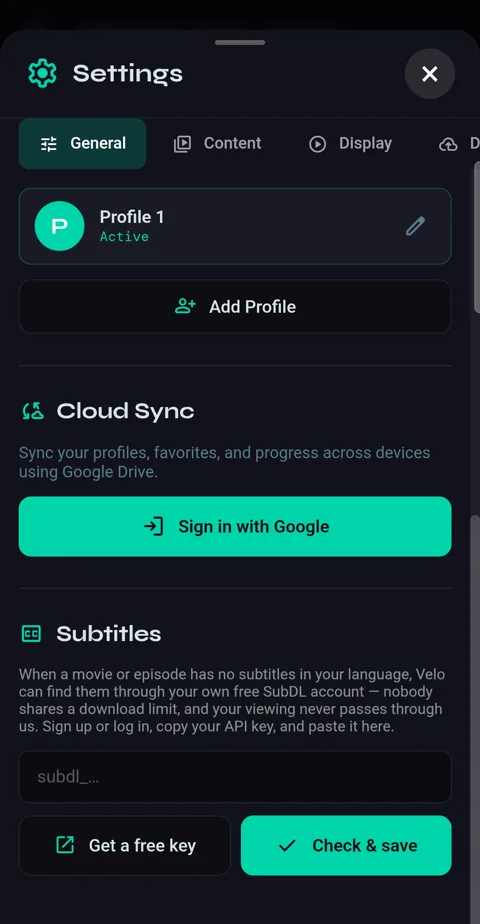
1Settings → General → Subtitles.
-
2Tap Get a free key. SubDL opens: sign up — free is enough — or log in, and on the API page copy your key (it starts with
subdl_).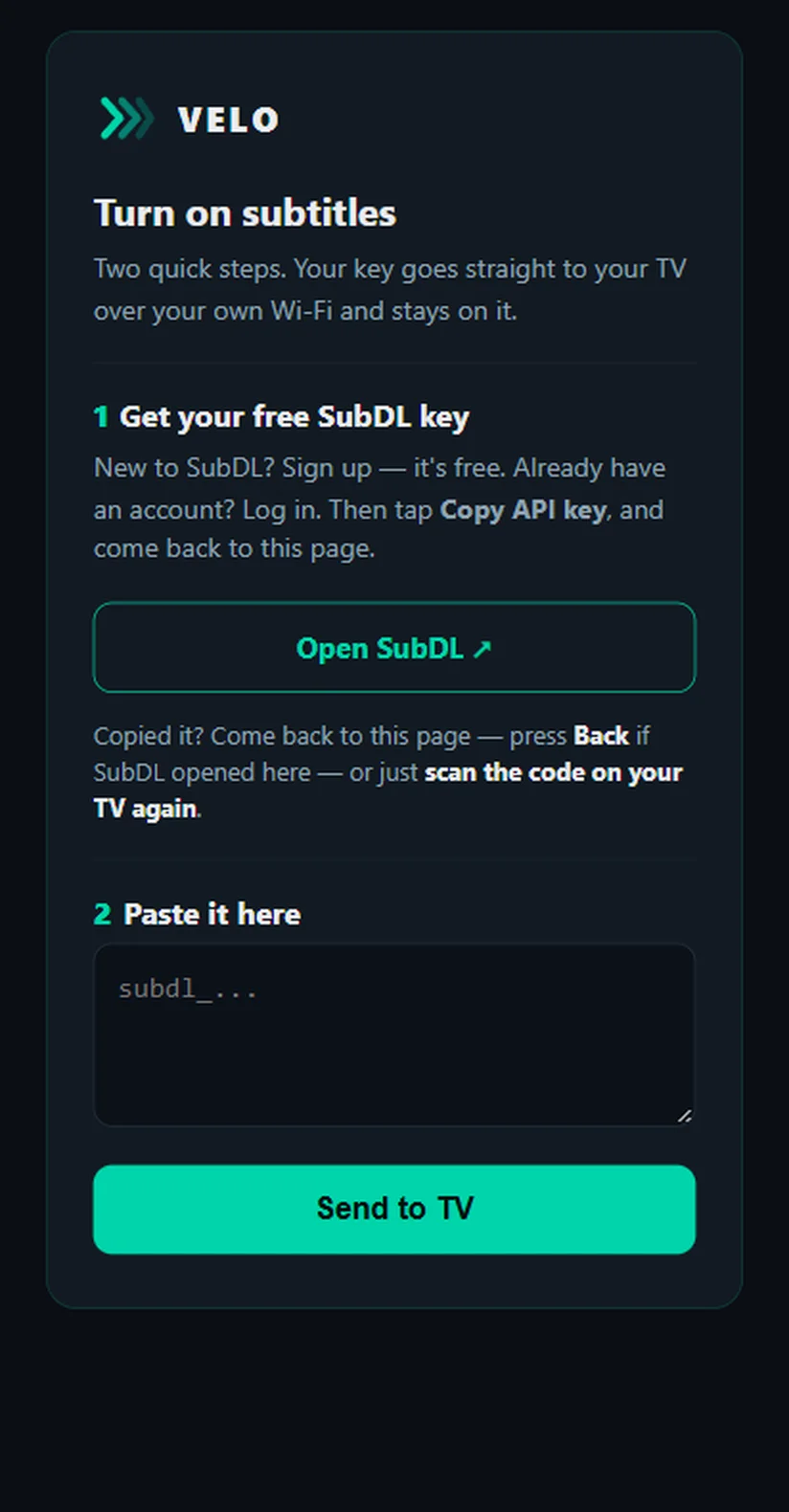
-
3Come back to Velo, paste the key and tap Check & save. Velo checks it with SubDL first and tells you if it isn't accepted. The key is stored only on this phone.
Find subtitles for a title
-
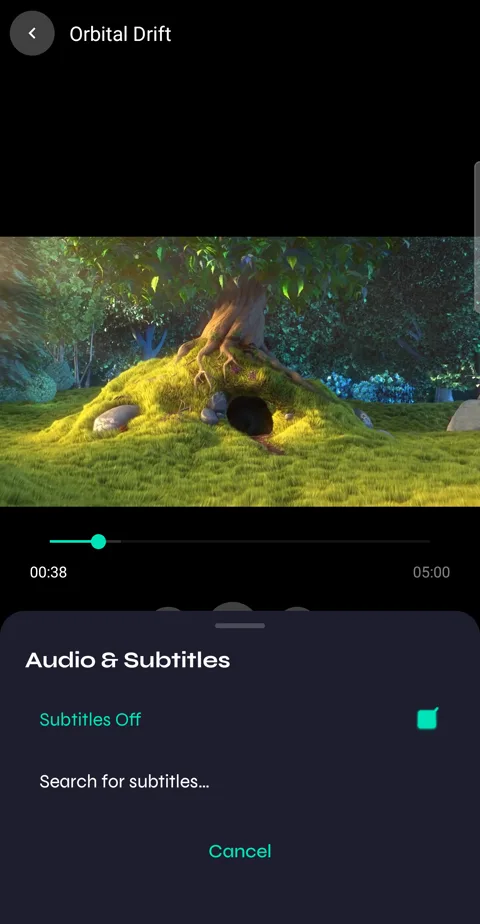
1While a movie or episode plays, tap CC. The Audio & Subtitles menu lists any tracks built into the file, then Search for subtitles. The title pauses while the menu is open.
-
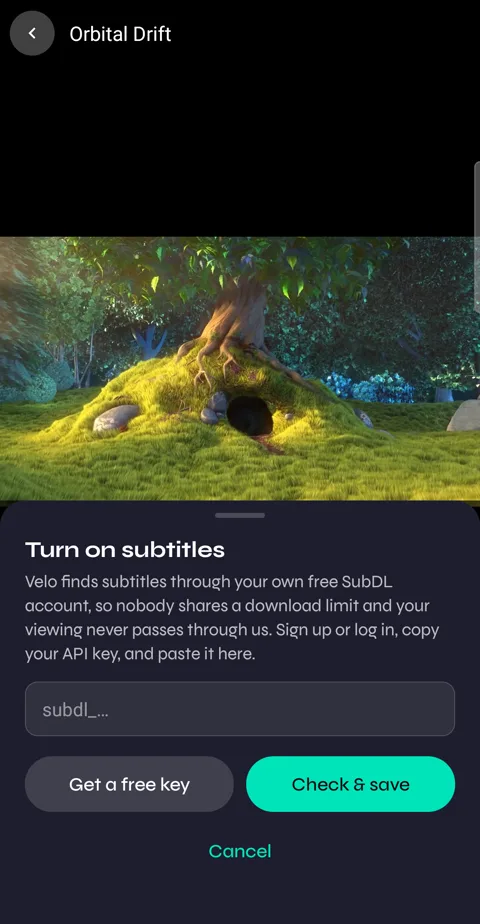
2Not connected to SubDL yet? Velo offers to set it up right there.
-
3Pick one from the results. Velo downloads it and playback carries on with subtitles on.
-
4Velo remembers your choice: play the title again and the subtitles come straight back. In a series, the next episode starts with them on. Choose Subtitles Off to stop.
If the timing is off
Subtitles are timed to a particular release, and yours may be a different one.
-
1Tap CC again and choose Adjust sync. Nudge earlier or later until speech and text line up.
-
2Or go back to the results and pick a different version — several are usually offered.