Hide the categories you never use, rename the rest, and set how Velo opens.
A category's menu
-
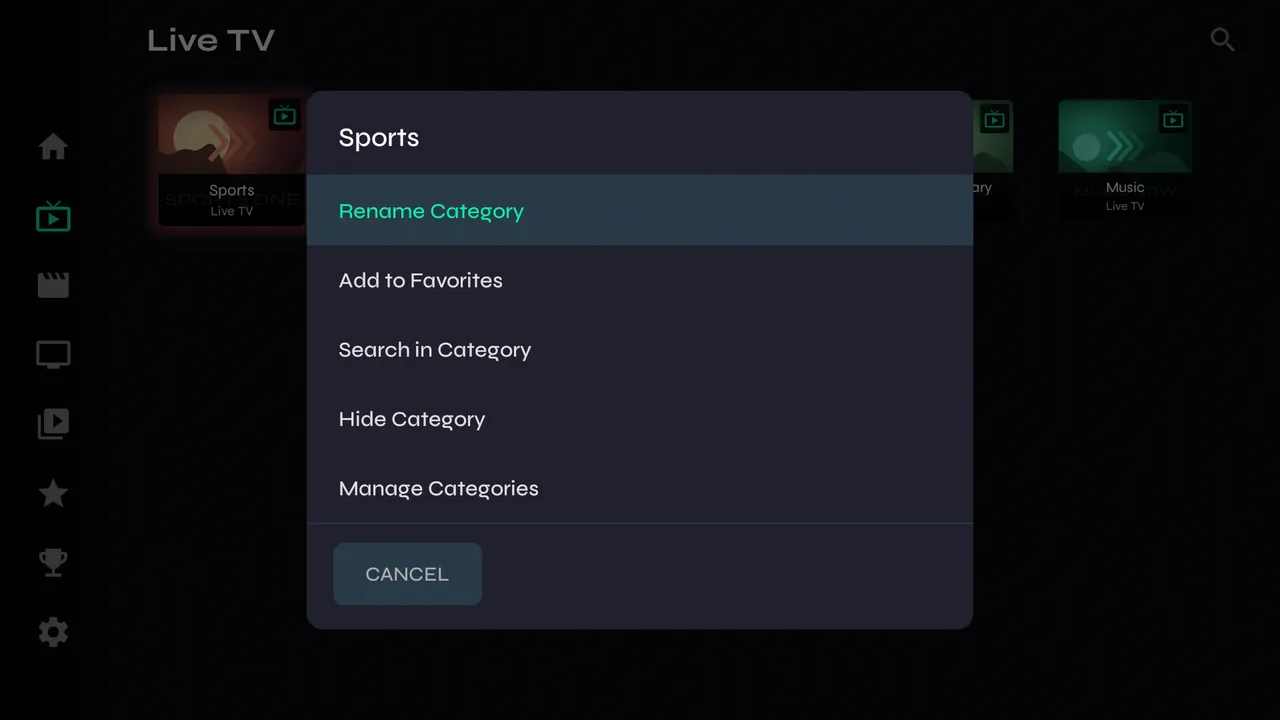
1Hold OK on any category for Rename Category, Add to Favorites, Search in Category, Hide Category and Manage Categories.
-
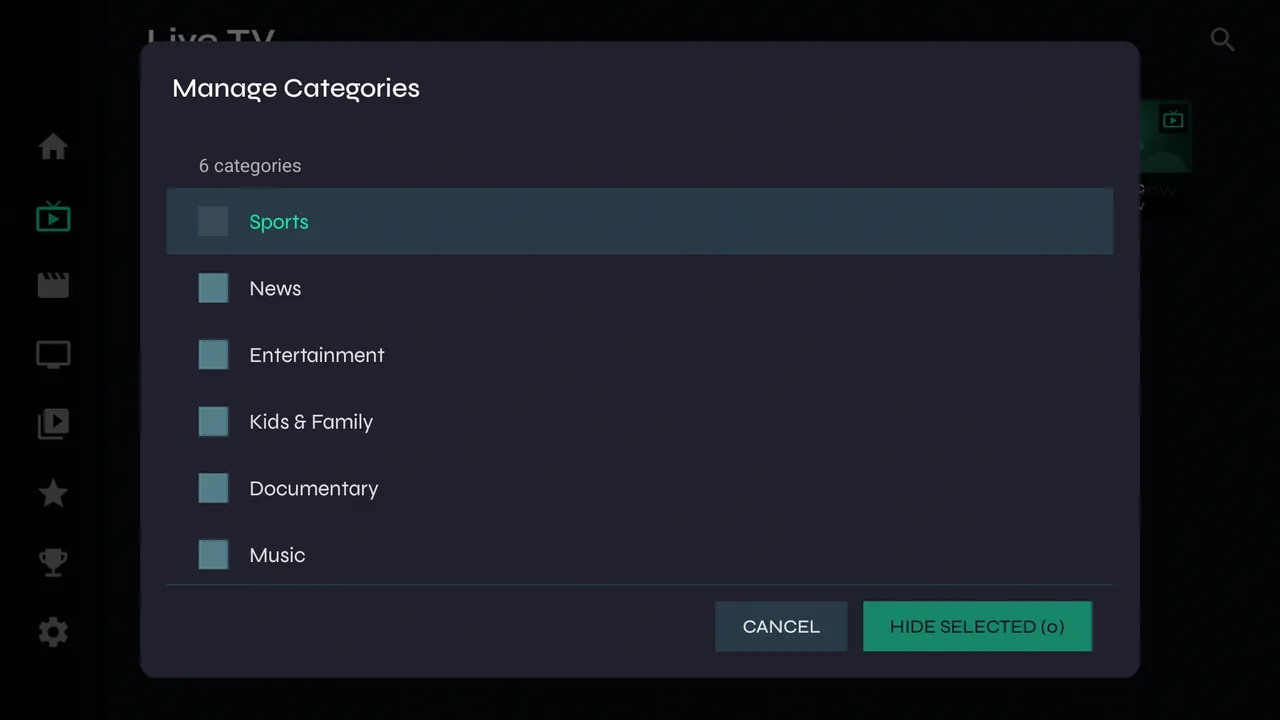
2Manage Categories lets you tick several at once and hide them together.
-
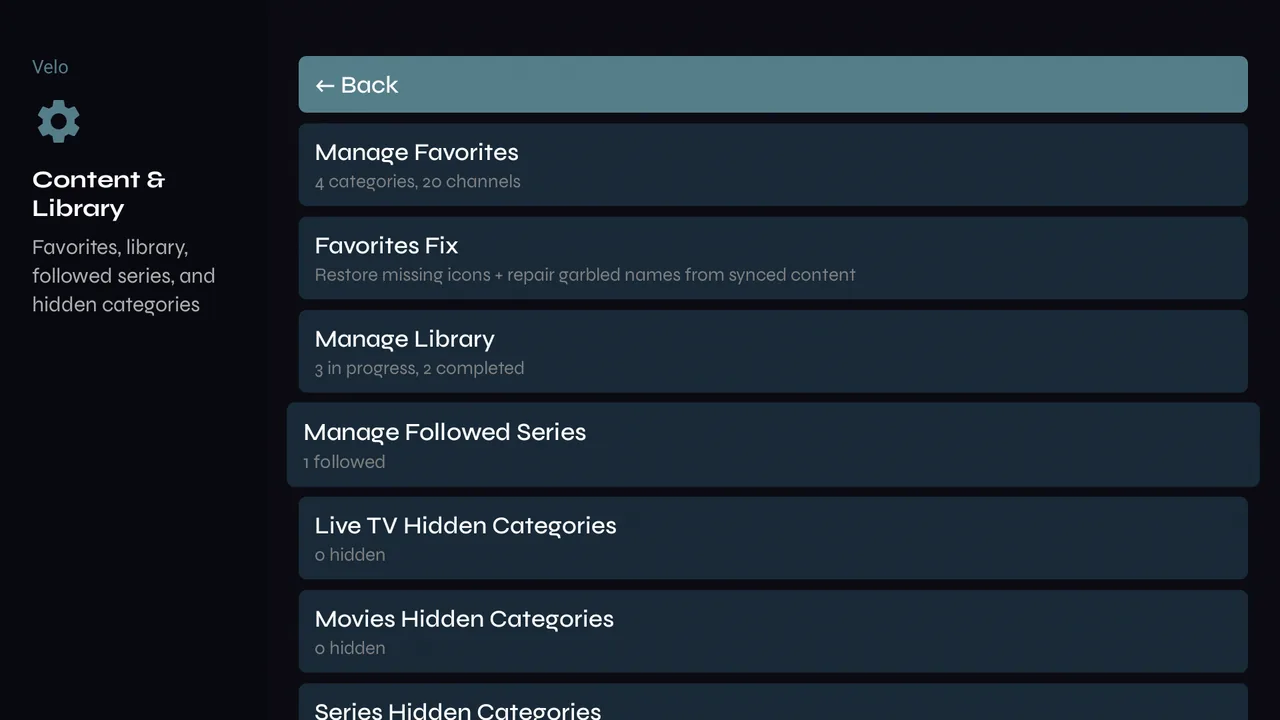
3Hidden by mistake? Settings → Content & Library → Live TV / Movies / Series Hidden Categories brings them back.
How Velo opens and looks
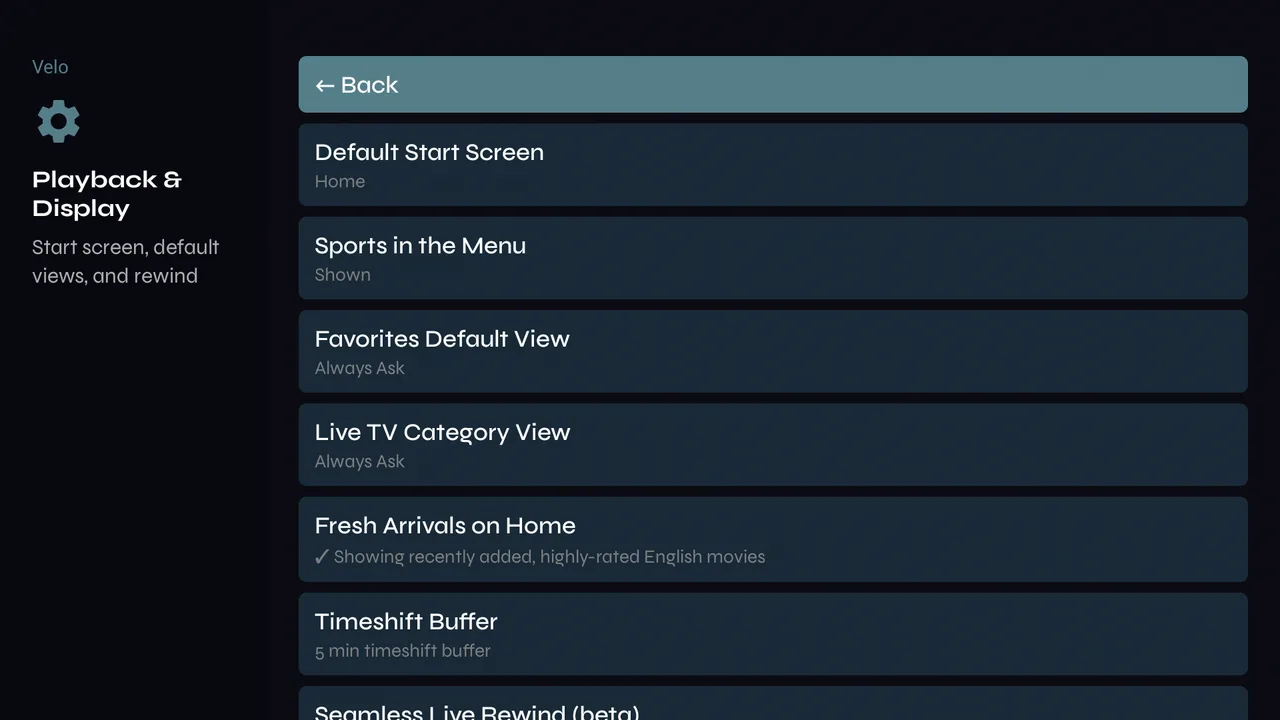
Settings → Playback & Display.
-
1Default Start Screen — open on Home, Live TV, Favorites or another section. Favorites Default View and Live TV Category View — always open as a Live Guide or a grid, or ask. Sports in the Menu, Fresh Arrivals on Home and the Timeshift Buffer for rewinding live TV are here too.
-
2Surround Sound — some TV boxes play 5.1 sound too fast. Velo notices and switches that box to stereo by itself (Automatic); choose Always Stereo to make it permanent.
Back up your setup
-
1Settings → Backup & Restore exports your favourites, hidden categories and library to the device's Downloads folder, and imports them again — on a new box, say.