Keep favourites, history and settings the same on every device you use Velo on.
Connect a TV
TVs pair through your phone, because signing into Google with a remote is miserable.
-
1Settings → Cloud Sync → Connect Google Drive.
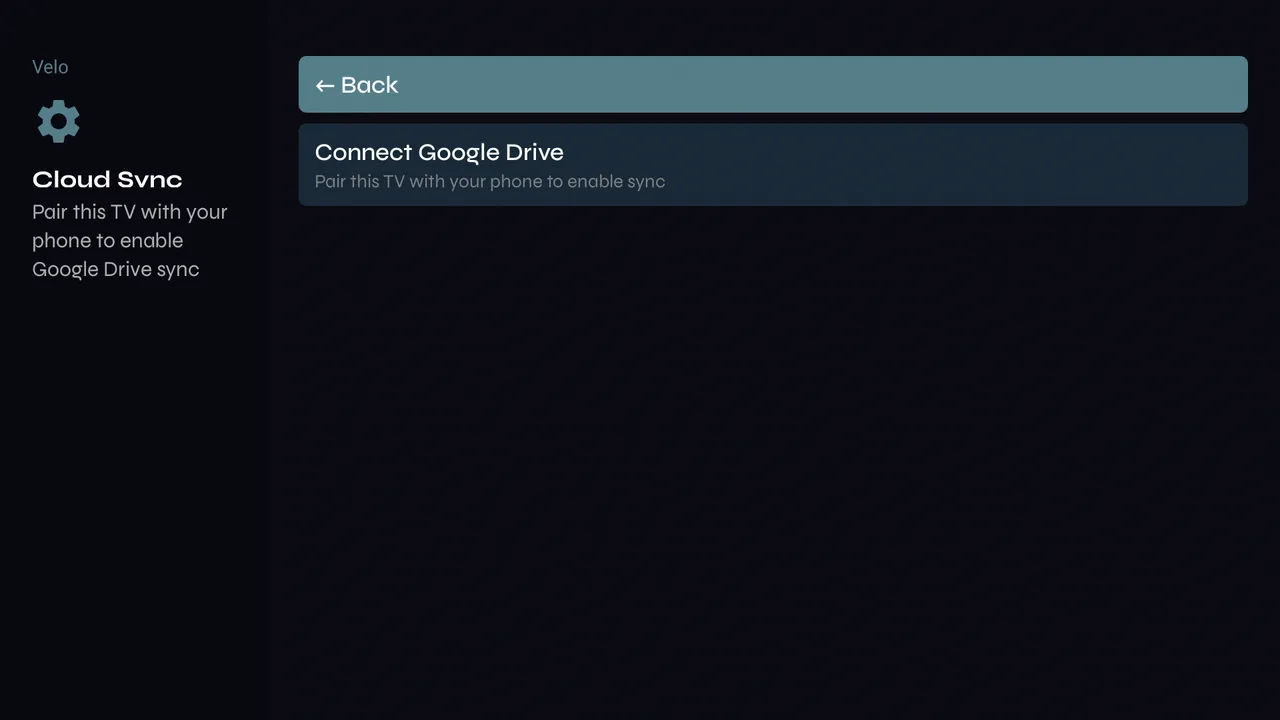
-
2On your phone, open google.com/device and type the code — or scan the QR code, which fills the code in for you. Approve access, and the TV connects. The code lasts 30 minutes. Velo can only see the files it creates in your Drive.
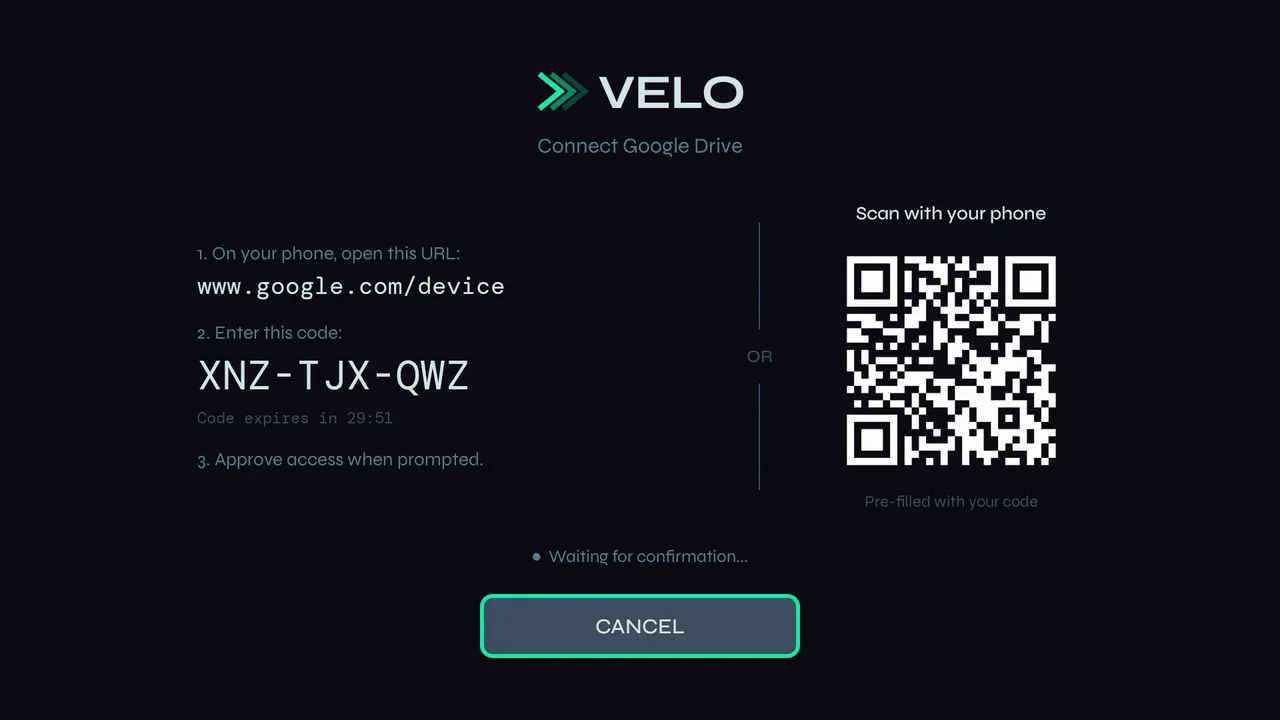
How it behaves
-
1Velo fetches the latest when it opens and saves when you leave. Changes merge: a favourite added on the phone appears on the TV, and a folder reordered on the TV reorders on the phone.
-
2Sync Now in Settings → Cloud Sync does both straight away. Your provider login, recordings and downloads never sync — they belong to the device.
Disconnect
-
1Settings → Cloud Sync → Disconnect. The device keeps its data and stops syncing.