Hide the categories you never use, and set how Velo opens.
A category's menu
-
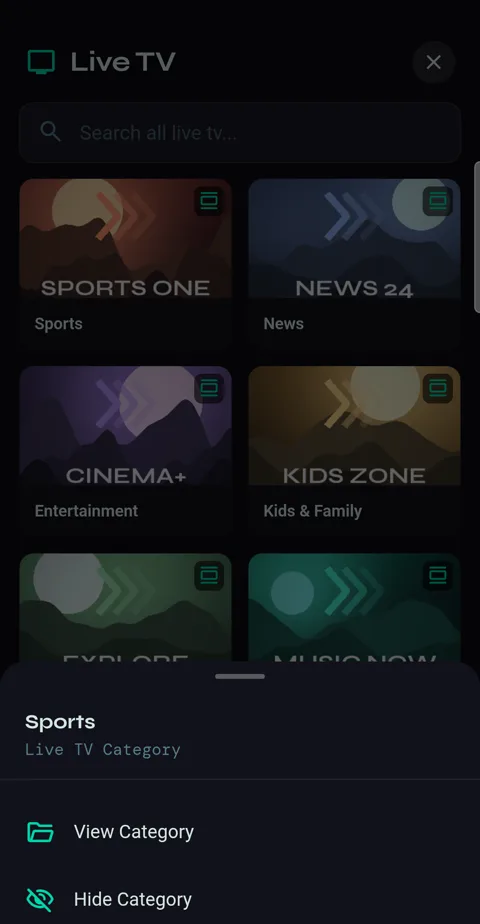
1Press and hold any category for View Category and Hide Category.
-
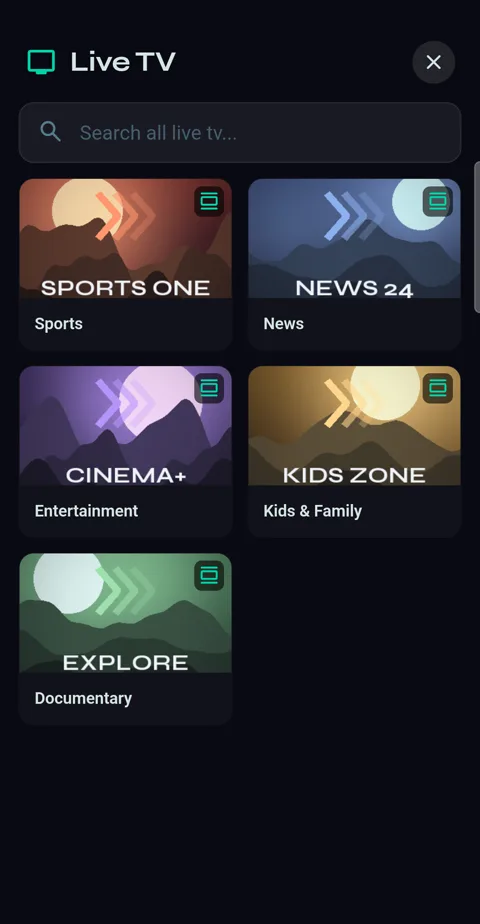
2A hidden category disappears straight away.
-
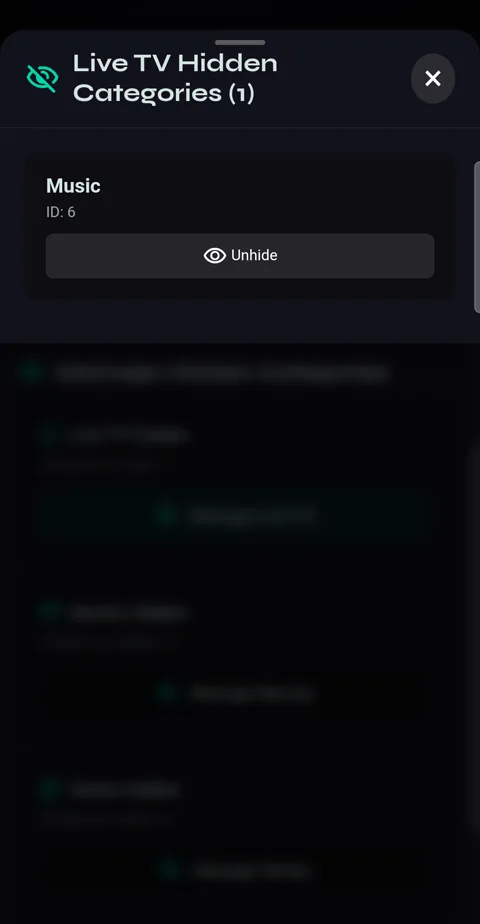
3Hidden by mistake? Settings → Content → Manage Hidden Categories: Manage Live TV, Movies or Series lists them, each with Unhide.
How Velo opens and looks
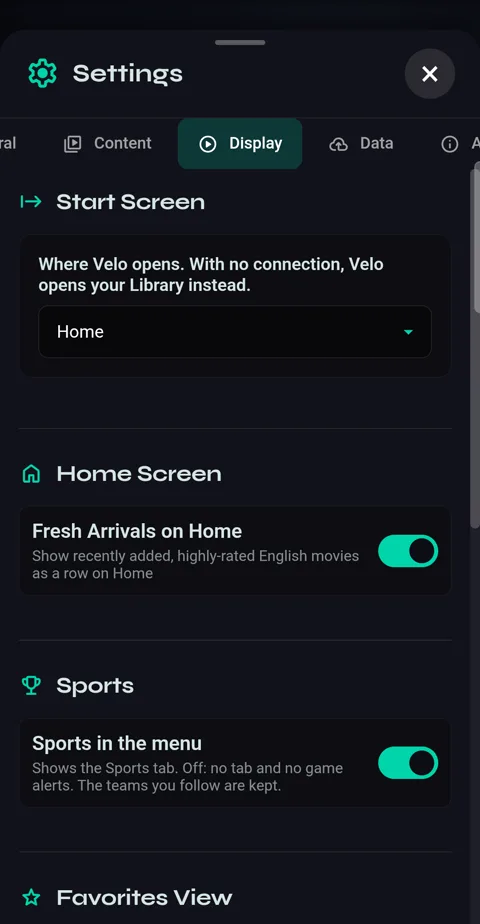
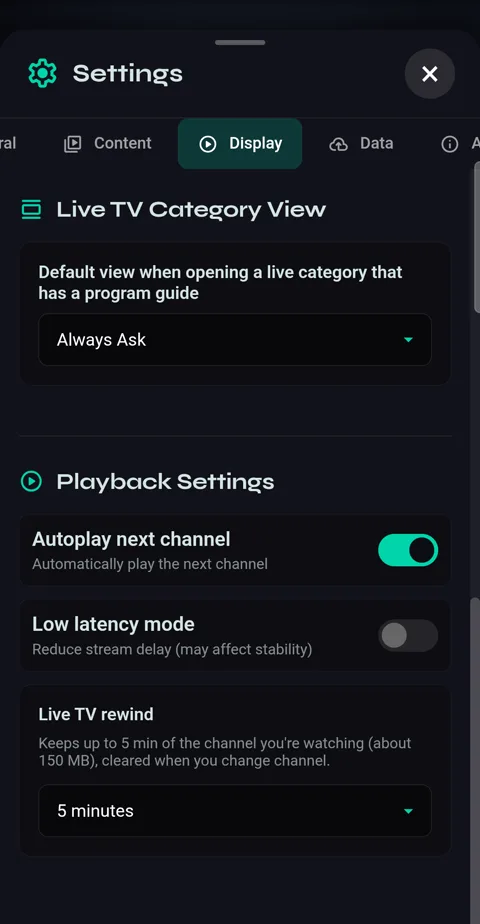
Settings → Display.
-
1Start Screen — open on Home, Live TV, Favorites or another section (with no connection, Velo opens your Library). Fresh Arrivals on Home and Sports in the menu are here too.
-
2Favorites View and Live TV Category View — always open as a Live Guide or a grid, or ask. Under Playback Settings: Autoplay next channel, Low latency mode and how far Live TV rewind goes back.
Back up your setup
-
1Settings → Data → Backup & Restore exports your favourites, watched list and hidden categories to a file, and imports them again — on a new phone, say. While Cloud Sync is connected it's hidden, because Cloud Sync does the same job.