The buttons under the picture, full screen, and how series carry on.
Live TV
-
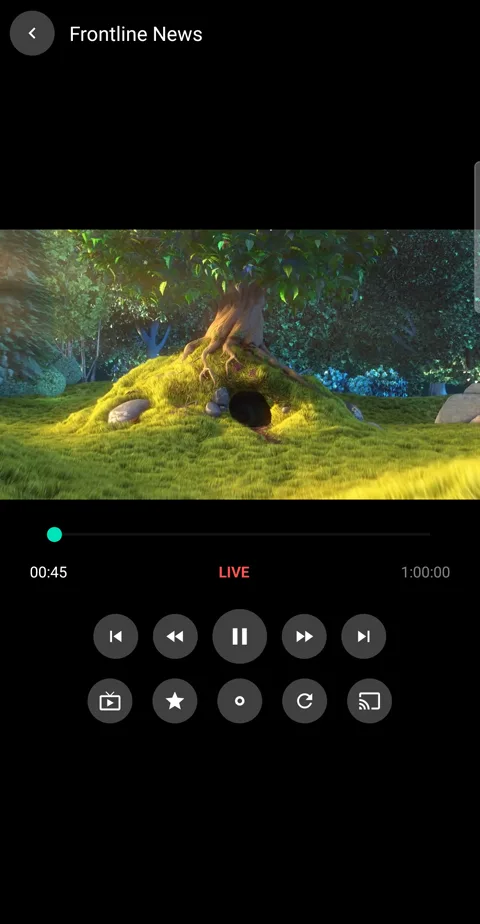
1Tap a channel to watch. The picture sits at the top with the controls under it: previous and next channel, rewind, pause, fast-forward, then the guide, favourites, record, reload and cast.
-
2Previous and next step through the list you picked the channel from — your search results, the category, the favourites folder.
-
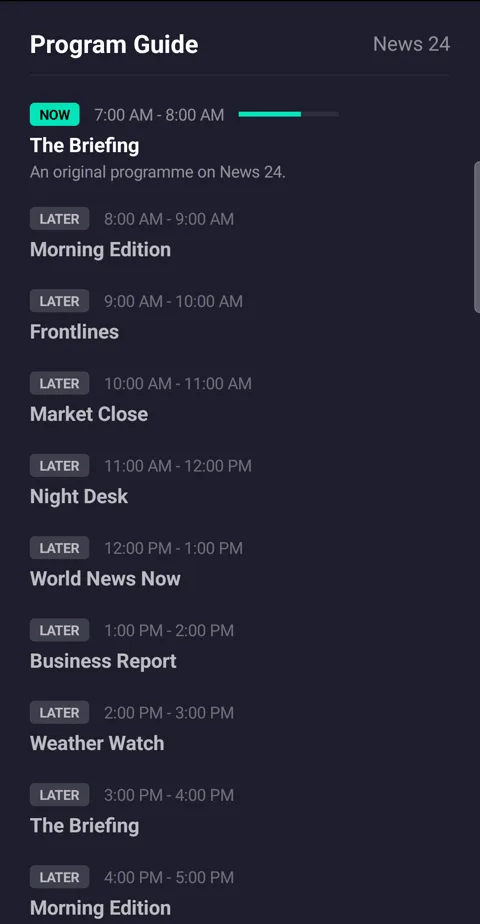
3The guide button, first in the second row, shows what's on this channel now and later. Press Back to close it.
-
4Rewind goes back through what has aired since you tuned in — see Recording live TV.
Movies and episodes
-
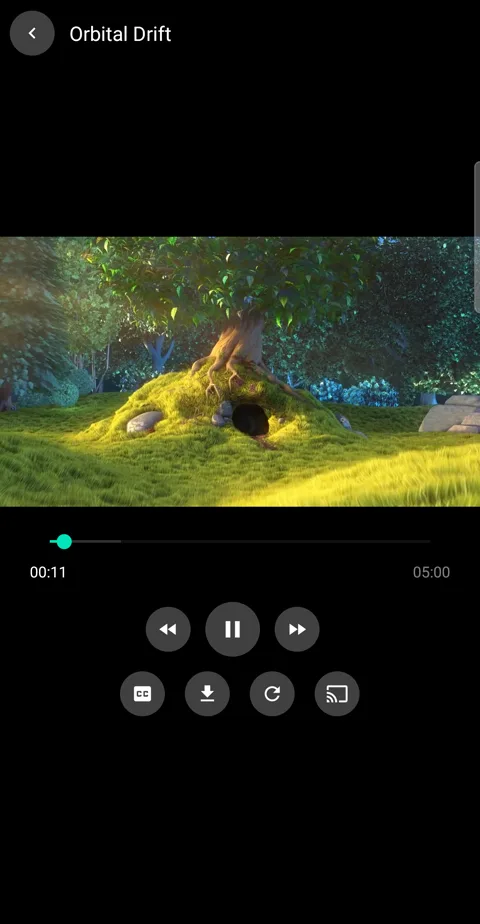
1Tap a movie to start it. Drag along the bar to jump anywhere, or use rewind and fast-forward. The second row has CC for audio and subtitles, download, reload and cast.
-
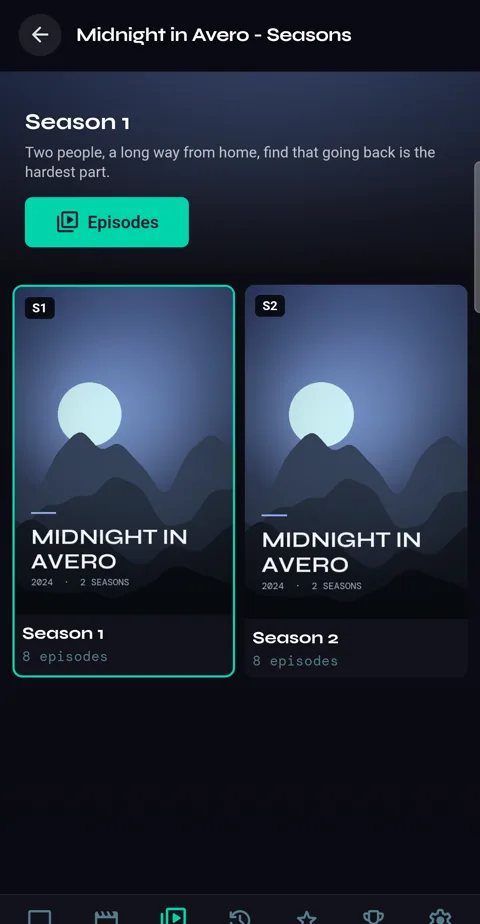
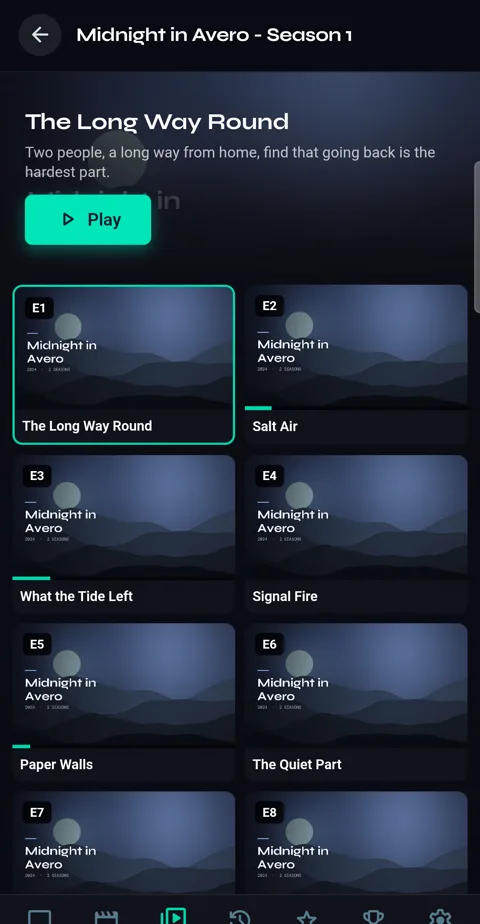
2For a series, tap it for its seasons. Tap a season, then Episodes.
-
3Tap an episode, then Play. One you've started shows how far you got.
-
4While an episode plays, the second row adds Episodes: it opens the series under the picture — tap a season, then an episode.
-
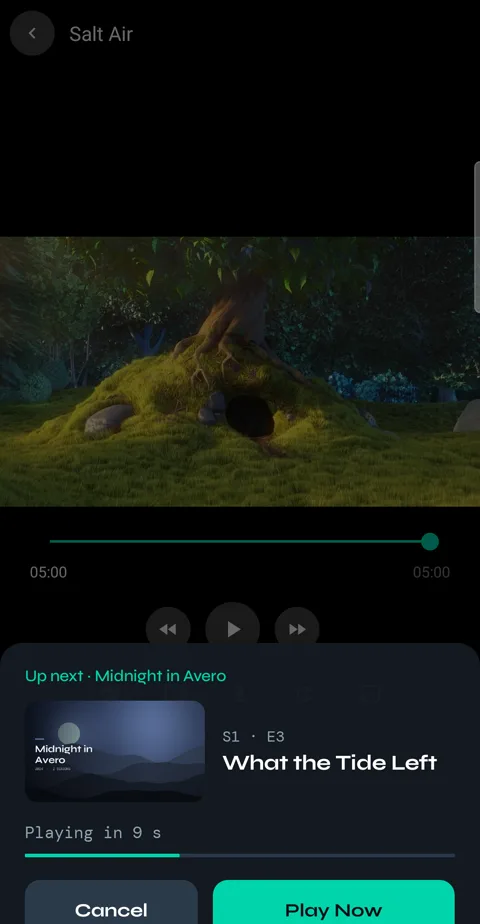
5When an episode ends, a card shows the next one and counts down from ten. Play Now starts it straight away, Cancel stops there. After three episodes in a row Velo asks whether you're still watching first.
-
6Leave a title partway and it waits for you in Continue Watching.
Full screen
-
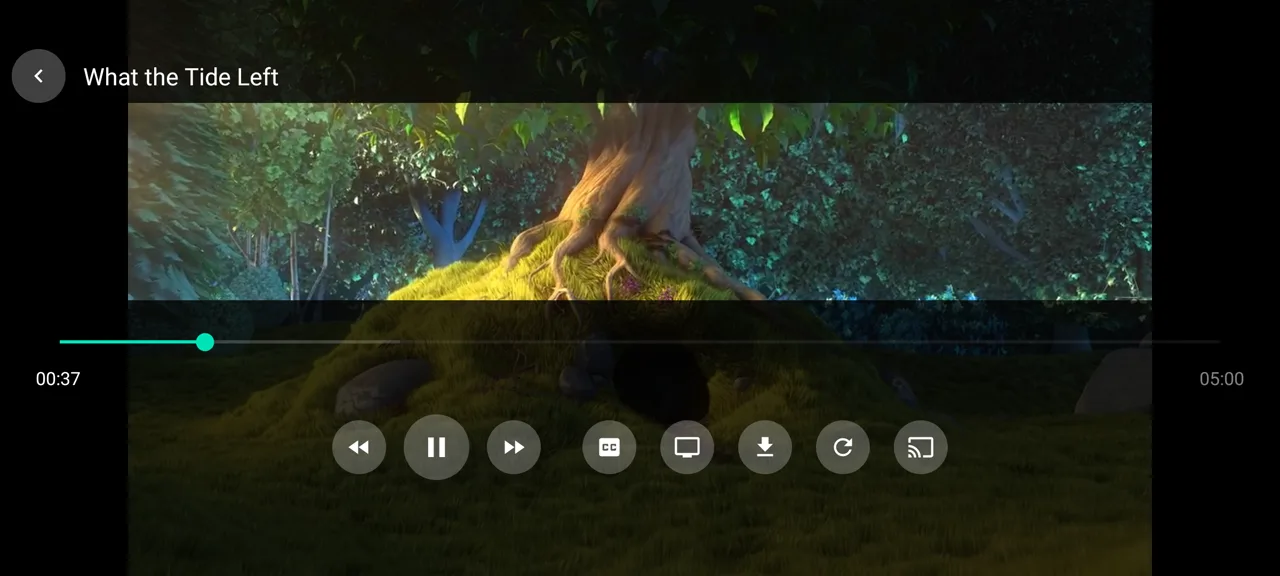
1Turn the phone sideways for full screen. Tap the picture to show the controls; they hide again after a few seconds.
If the picture stops
-
1Reload reconnects to the same channel or title. Velo also tries this by itself when a stream drops.
On your TV
-
1Cast, the last button, plays the channel or title on a Chromecast or a TV with Chromecast built in, on the same Wi-Fi.