The buttons on screen while you watch, and the shortcuts that work without them.
Live TV
-
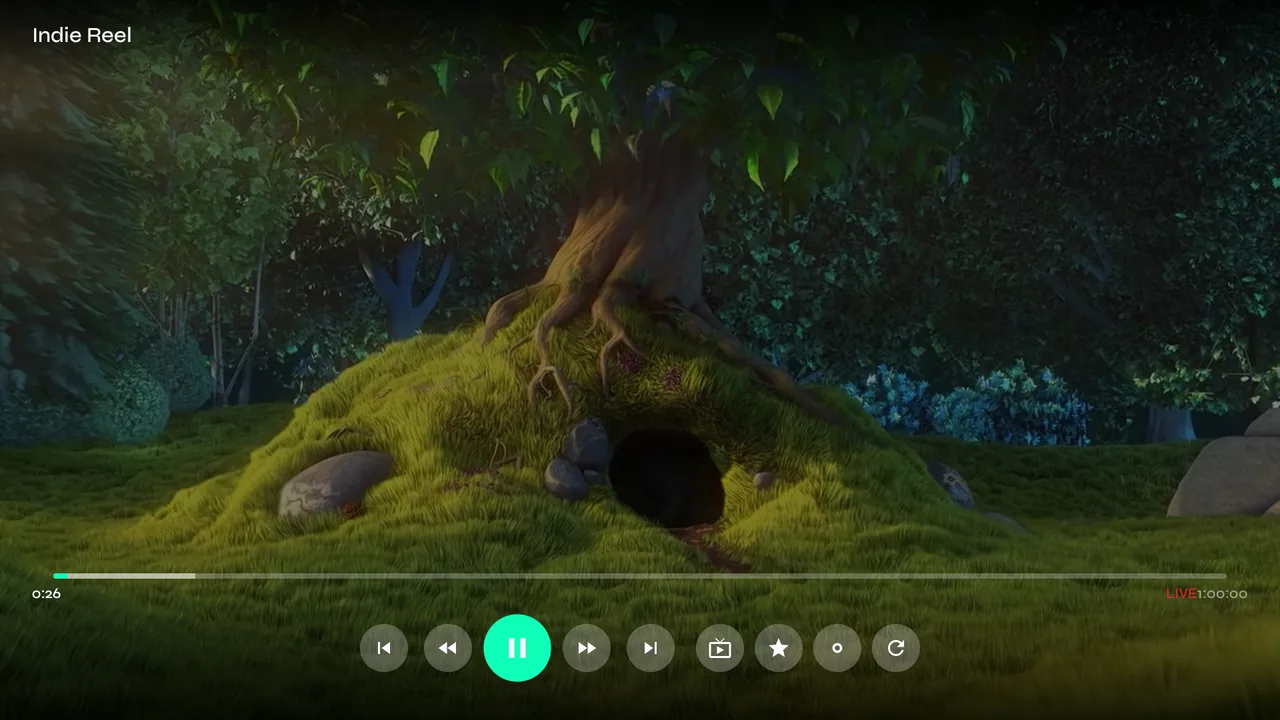
1Press OK while a channel plays to show the controls: previous and next channel, rewind, pause, fast-forward, the program guide, add to favourites, record and reload. They hide again after a few seconds.
-
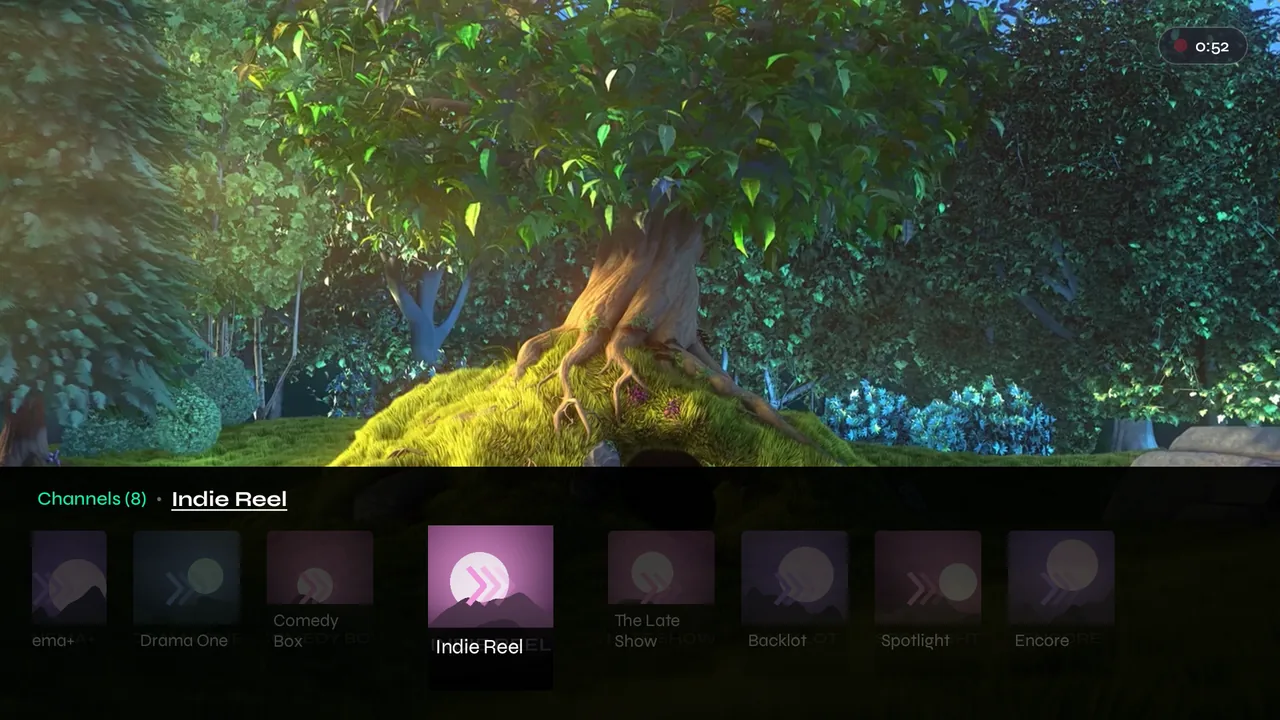
2With the controls hidden, press down for the channel strip — the other channels in the category you came from. Move left or right and press OK to switch.
-
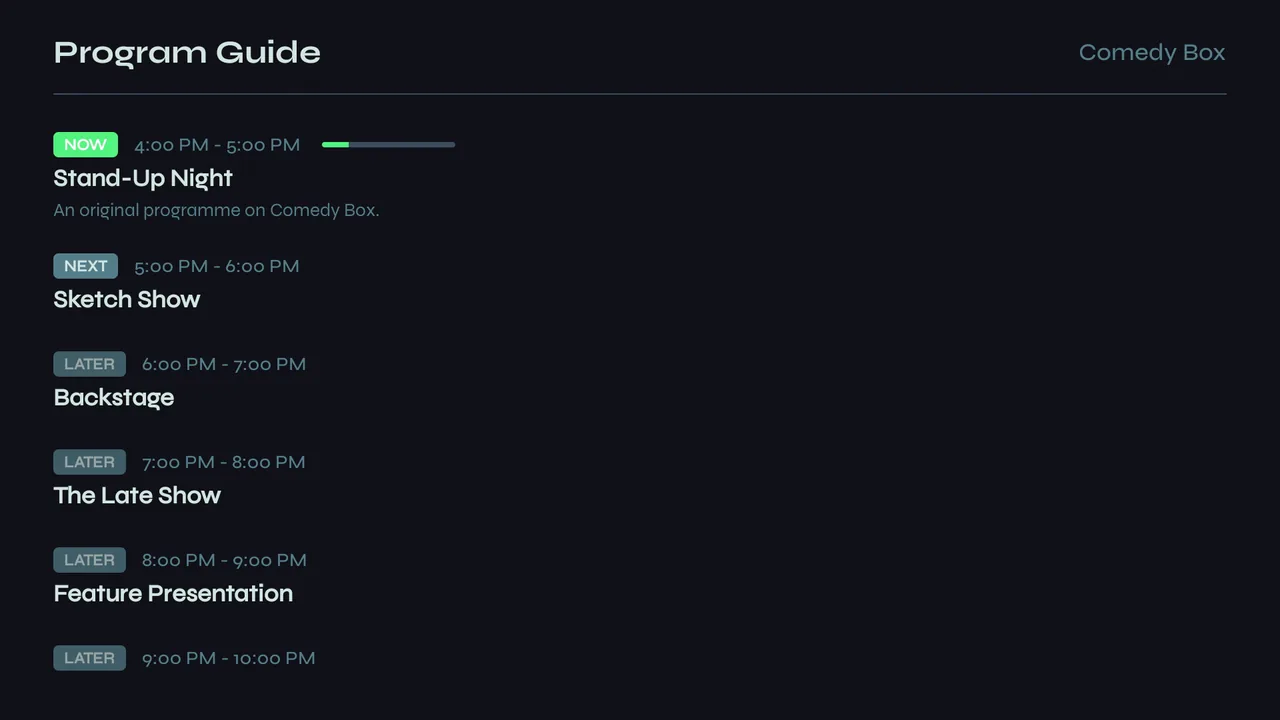
3The guide button shows what's on this channel now, next and later. Press Back to close it. (It only appears on channels that have a guide.)
-
4The Guide or Info button on your remote opens the same guide straight away, and closes it again.
-
5Press left to go back a few seconds, and keep pressing to go further — or hold left down and Velo keeps going back, faster the longer you hold. Right comes forward the same way. Recording live TV explains rewinding and recording.
Movies and episodes
-
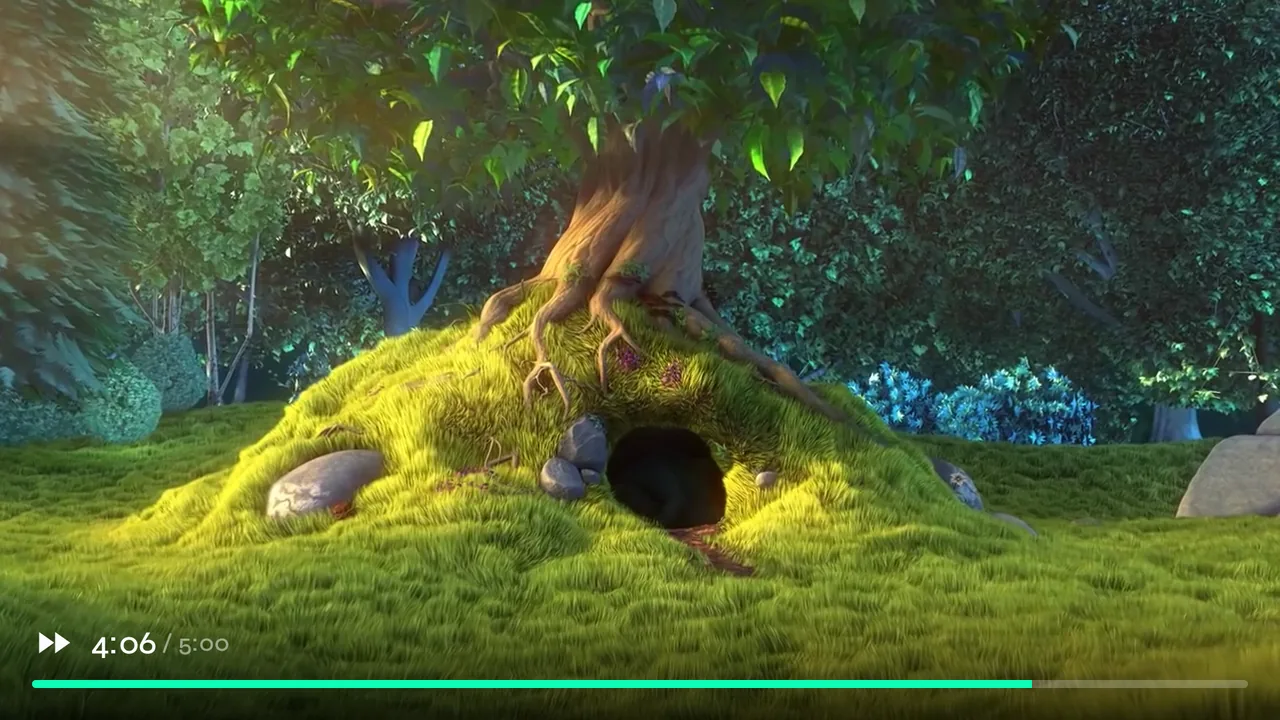
1Press left or right to skip back or ahead. Keep pressing and the jumps get bigger; the time you've reached shows along the bottom.
-
2Or hold left or right down: Velo keeps going, faster the longer you hold, and plays on from where you let go.
-
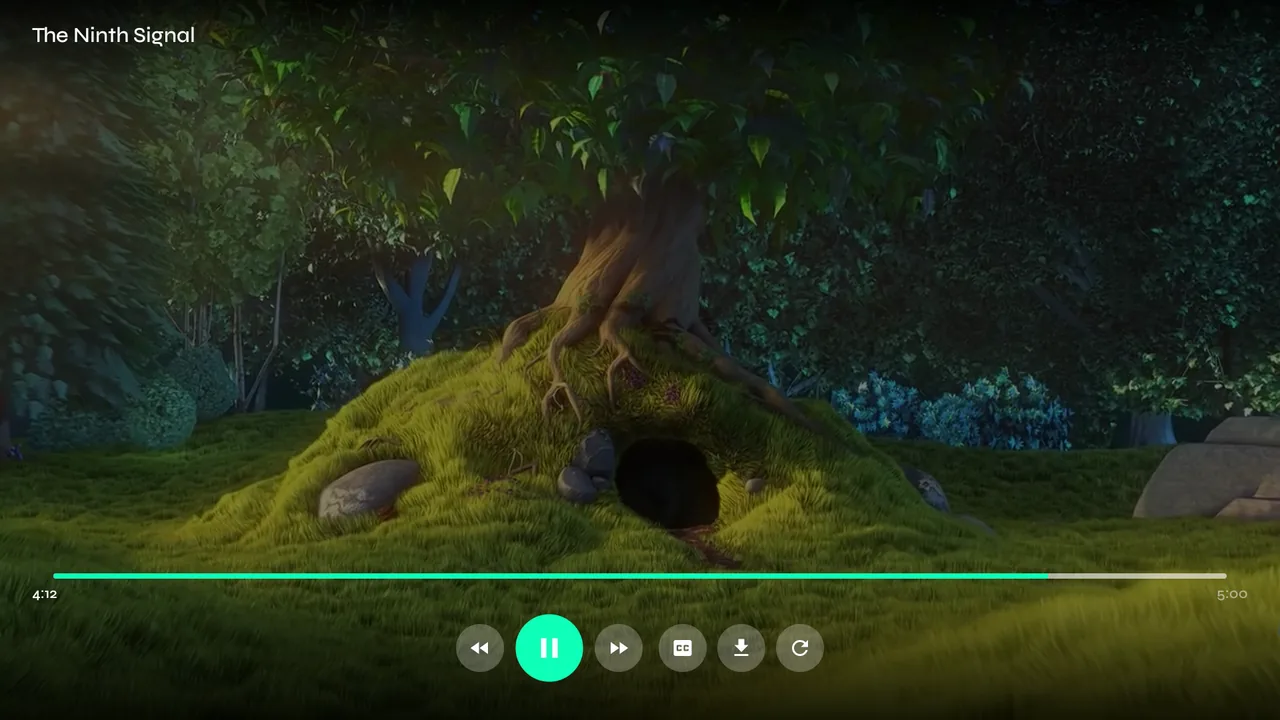
3Press OK for the controls: rewind, pause, fast-forward, CC for audio and subtitles, download, and reload.
-
4Velo remembers where you stopped. Leave partway through and the title waits for you in Continue Watching.
-
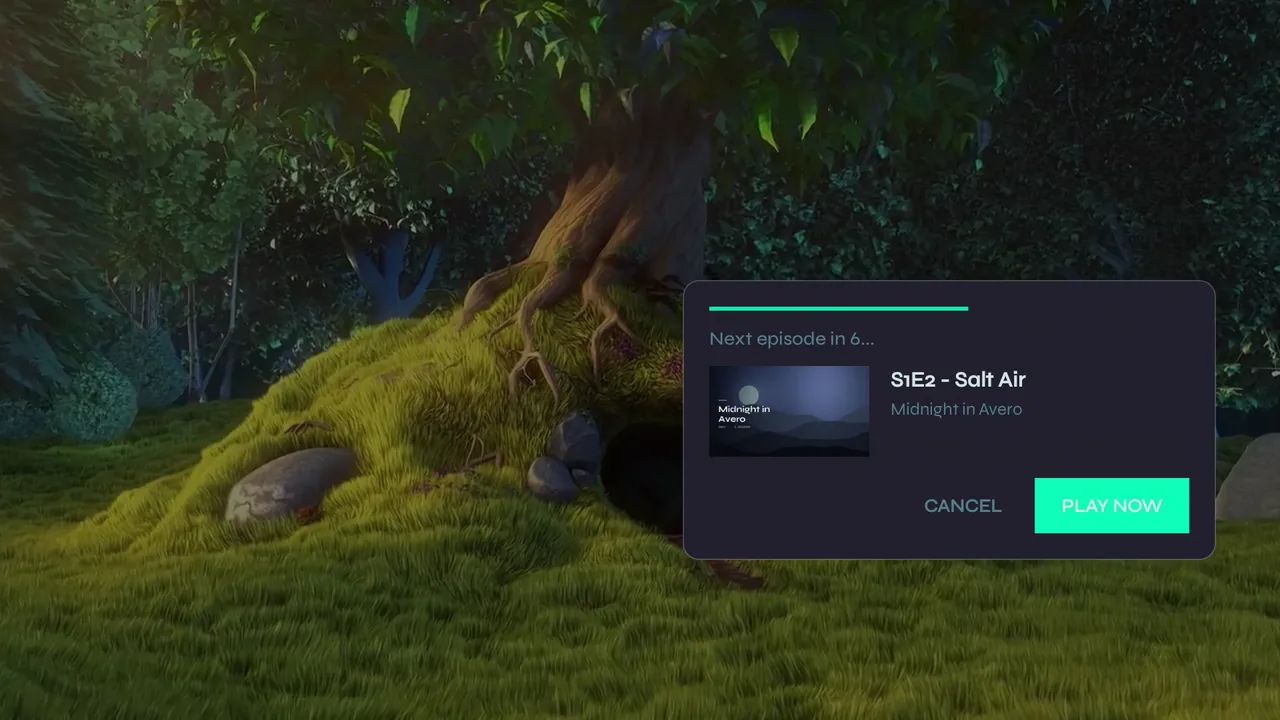
5When an episode ends, a card counts down to the next one. Choose Play Now to start it straight away, or Cancel to stop there.
-
6While an episode plays, press down for the series' episodes. Move left or right through the season, up or down to change season, and press OK to watch one — it starts where you left it. The line above says which episode you're on and how much of it you've seen. Channel up and down on the remote step through the episodes too.
If the picture stops
-
1Reload, the last button, reconnects to the same channel or title. Velo also tries this by itself when a stream drops.